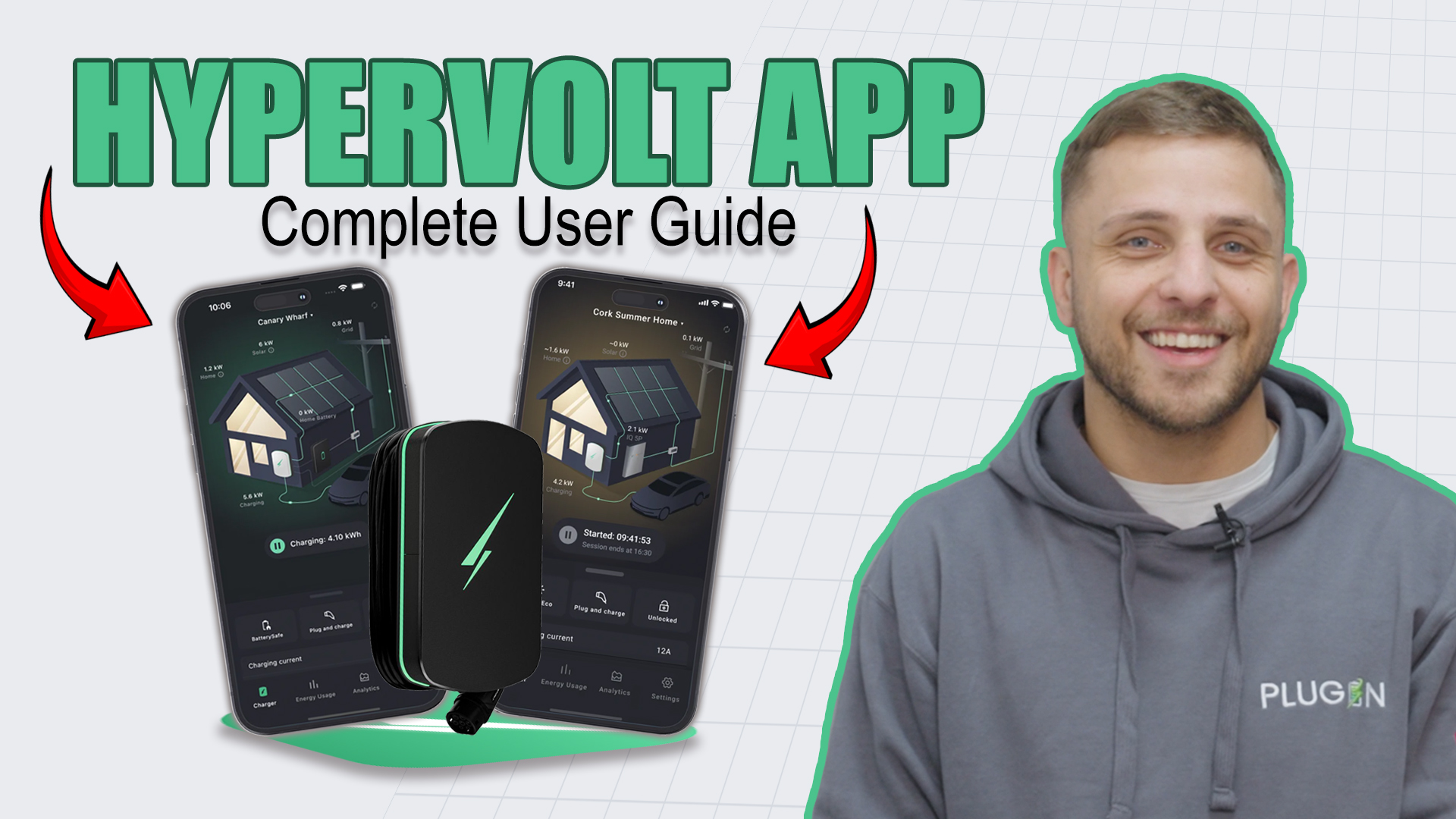

Stop Wasting Money on Your Hypervolt
If you've had a Hypervolt installed and you're just plugging in and hoping for the best, you're leaving serious money on the table. The Hypervolt app is the control centre that turns your charger from a simple piece of hardware into an intelligent home energy system - one that can schedule your charging around cheap tariff windows, integrate with solar panels, manage your home's electrical load, and give you a real-time breakdown of every penny you spend.
This guide covers everything you need to know: how to set it up, how to unlock the features that save you the most money, and how to tailor the app to your lifestyle. Whether you're on Octopus Intelligent Go, Economy 7, or a standard tariff, the Hypervolt app has tools that can make a meaningful difference to your annual energy bill.
Getting Started: Download, Setup & Adoption
Download and Create Your Account
Head to the Apple App Store or Google Play Store and download the Hypervolt app for free. Open it up and create an account - you can use Apple or Google Sign-In for speed, or set up an email and password.
Adopting Your Charger
Before your charger will appear in the app, you need to "adopt" it - this is the process of linking the charger to your account.
- Make sure Bluetooth is switched on and stand within 5 metres of your charger
- Open the app and tap Start Scanning
- When your Hypervolt appears, select it and tap Adopt
- Connect to your home Wi-Fi network and enter your password
- Set your location details: country, timezone, and currency
For the most reliable experience, Hypervolt recommends connecting via ethernet rather than Wi-Fi - it's more stable and eliminates dropouts when controlling your charger remotely.
Once adopted, your charger is linked to your account and can be controlled from anywhere in the world.
Understanding the Dashboard
The Hypervolt home screen is your charging command centre. At the top, you'll see your charger's real-time status - charging, idle, or locked. Below that is the energy profile graph: a live visualisation of your home's entire electrical picture, showing grid power coming in, your appliances consuming energy, and your charger drawing power for your car.
If you have solar panels, your generation appears here too - watching free energy flow directly into your car is one of the more satisfying parts of owning a smart charger. The home screen also shows your current session in real-time: how long it's been running, the exact kWh delivered, and the range gained. In the latest version of the app, home screen widgets can be reordered to show what matters most to you.
Plug & Charge vs Schedule Charge - The Decision That Saves You Money
This is where the intelligence begins. Tap the mode selector on the home screen and you'll see two core options.
Plug and Charge
Immediate charging at full power - typically 7.4kW on a standard home installation - until your battery's full or you unplug. This is your emergency button. Use it when time matters more than cost.
Schedule Charge
This is where most Hypervolt owners should spend most of their time. Tap Schedule Charge, pick your date, set your start and end time, and choose your target battery percentage - 80% for daily commuting, 100% for a longer trip. You can stack multiple sessions: a Monday-to-Friday recurring overnight schedule at 2 AM, plus a weekend session at 11 PM Friday. The app shows you exactly how long the charge will take, the energy used, range gained, and - critically - the expected cost based on your tariff.
Random Delay
If you're on Economy 7 or a similar off-peak tariff, thousands of drivers are starting their charge at exactly the same time. Hypervolt's Random Delay feature shifts your start time by up to 30 minutes randomly, smoothing demand spikes on the grid while still hitting your cheap window.
Multi-Mode Scheduling
One of the more powerful recent additions: Multi-Mode Scheduling lets you configure your charger to automatically switch between modes throughout the day. Solar charging during sunny afternoon hours, then intelligent tariff mode overnight for cheap grid electricity - all set once, running automatically.
Energy Tariff Integration - The Engine of Your Savings
To unlock maximum savings, Hypervolt needs to know what your electricity actually costs. Go to Settings → Charger Settings → Energy Tariff, then tap Add Tariff. You'll see a list of UK energy suppliers including Octopus Energy, EDF, British Gas, and OVO.
Once connected, the app pulls in your live tariff rates. If you're on Octopus Intelligent Go - widely regarded as one of the best tariffs for EV owners - Hypervolt sees your cheap charging windows in real-time and schedules your sessions accordingly. Hypervolt states drivers can save up to £600 per year by combining smart scheduling with these tariffs.
You can also set a price cap: a maximum pence-per-kWh threshold above which Hypervolt won't charge. Rates go above your limit? The session pauses. Rates drop below? It starts automatically. Integration with Octopus Intelligent Go is now live following the V2 update, with OVO Charge Anytime support also in the rollout.
Real-Time Energy Tracking & Session History
After a few weeks of charging, the Sessions or History section becomes invaluable. Every charging session is logged with date, start and end time, total kWh delivered, cost based on your tariff, and range added. Filter by date range, compare month on month, and see at a glance whether your smart scheduling is making a difference. The summary card at the top of the app shows your total energy used, average cost per session, and estimated savings versus standard rates.
Security & Remote Lock
From the home screen, tap the lock icon to remotely lock your charger. All physical controls on the unit are disabled - nobody can start a charge without unlocking it in the app first. Useful when you're away from home or when you want to ensure no unauthorised use.
The latest app update also introduces LED Shaders - the LED animations on your physical charger now mirror in the app, so you can check your charger's visual status from anywhere. Tap LED Settings to customise: standard indicator, night-time dim mode, or something more expressive.
Want to share control with your household? Go to Settings → Share Access → Invite Users, add your partner or family member's email, and assign permission levels - full scheduling control for your partner, instant charge only for your teenager.
Solar Charging Integration
If you have solar panels at home, this is where Hypervolt truly earns its place. Your installer will have fitted a CT clamp - a current sensor - on your solar system to measure surplus generation. Enable Solar Charging in settings and choose your mode:
- Solar Boost blends surplus solar with grid power intelligently. It draws your free solar first, then tops up from the grid to maintain a minimum of around 1.4kW. As solar output changes with cloud cover, the charger adjusts automatically.
- Solar Priority is eco mode. The charger only draws power when there's genuine surplus solar available. On sunny days, your car charges rapidly for free. On cloudy days, charging pauses. This requires more patience but is pure renewable optimisation.
The energy dashboard now shows solar generation as a separate line alongside your grid draw and home consumption - watching your panels generate the power flowing into your car in real-time is one of the most satisfying features of the entire system.
Load Balancing & Smart Home Integration
Hypervolt includes intelligent load balancing through its Dynamic Charging feature. Enable this in settings and Hypervolt monitors your home's total electrical draw in real-time. If your oven, heating, and charger are running simultaneously and approaching the limits of your supply, Hypervolt automatically reduces charger power to prevent a breaker trip. When that load drops, it ramps back up. The process is entirely seamless - you never need to think about it.
Hypervolt also integrates with Amazon Alexa for voice control: "Alexa, start charging my car" or "Alexa, lock the Hypervolt charger". For home automation enthusiasts, Hypervolt also offers API integrations compatible with platforms like Home Assistant, enabling complex automations based on solar generation, electricity prices, time of day, or weather forecasts.
Managing Multiple Chargers
If you have a Hypervolt at home and another at your business, or you're managing a small fleet, the app handles multiple chargers natively. Go to Settings → Add Charger and repeat the adoption process. Both chargers appear in the app; switch between them instantly. Each has its own dashboard, schedule, and session history, so you can track costs and usage across locations independently.
Troubleshooting
If your charger loses connection or shows an error, start with these steps:
- Check the LED indicator - solid green means healthy, blinking means searching for connection, red indicates a fault
- Go to My Device in settings to check connection status, firmware version, and error codes
- Restart the app, then power cycle your charger by flipping the isolator switch off for 10 seconds
- Ensure your Wi-Fi signal is strong near the charger
- If the issue persists, use the Support or Contact Us button in the app - Hypervolt's team typically responds within 24 hours
Watch the full Hypervolt App user guide here:
What's Coming Next
Hypervolt continues to evolve rapidly. Registration is open for Ultra Mode - an advanced upcoming feature that promises even more granular control over your charging strategy for drivers who want to optimise down to the finest detail. The app receives regular over-the-air updates, and customer feedback directly informs the roadmap.
The Hypervolt app is available free on iOS and Android. If you'd like a Hypervolt charger installed at your home, Plug In Stations is an approved installer - get in touch for a quote.


